Bitumio > Left Navigation Bar > Jobs > Jobs1. Follow the above-mentioned workflow to land on the Jobs screen.
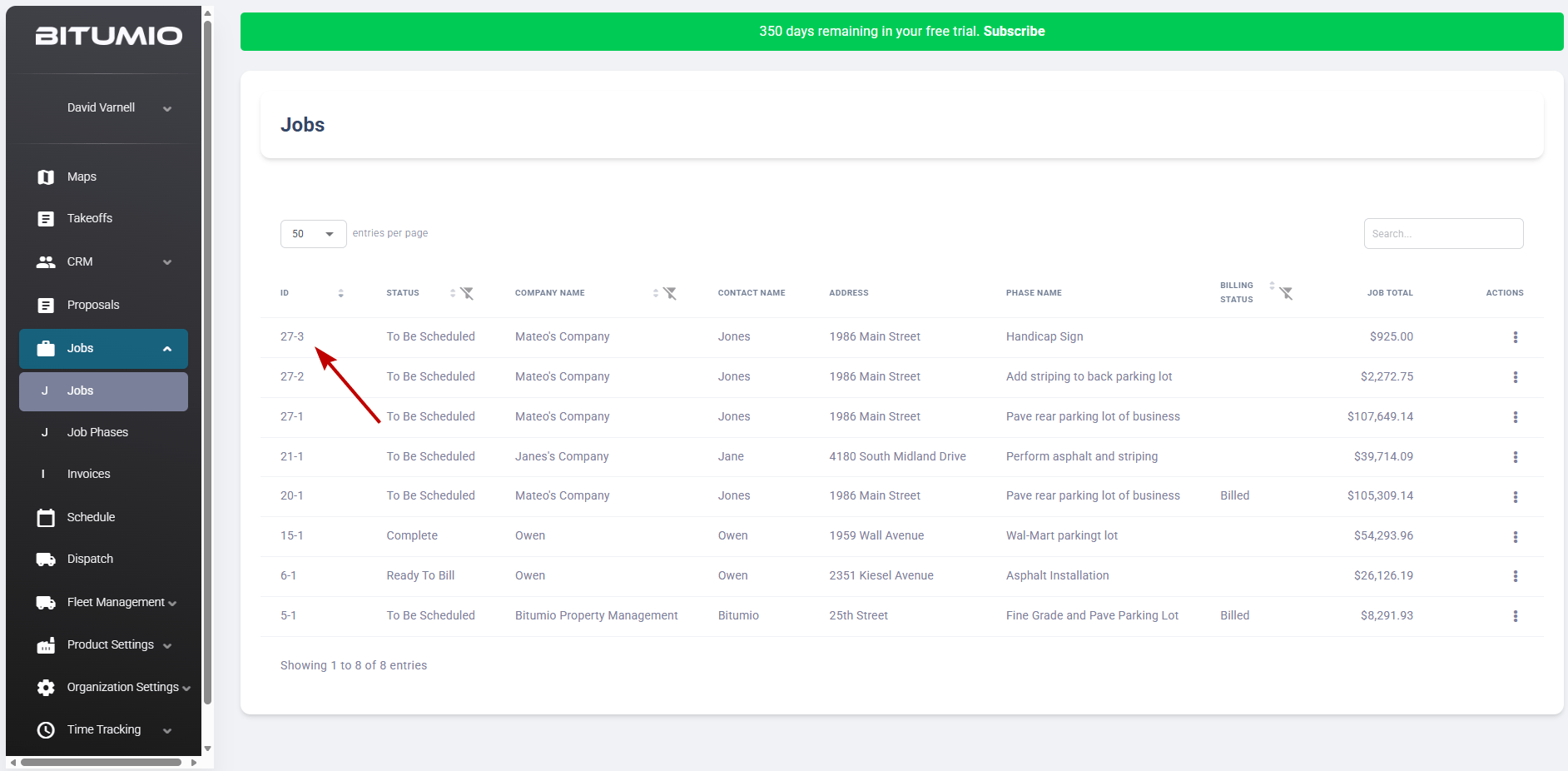
2. Click the ID for a job for which the Status is To Be Scheduled. Doing so takes you to the Update Job screen.
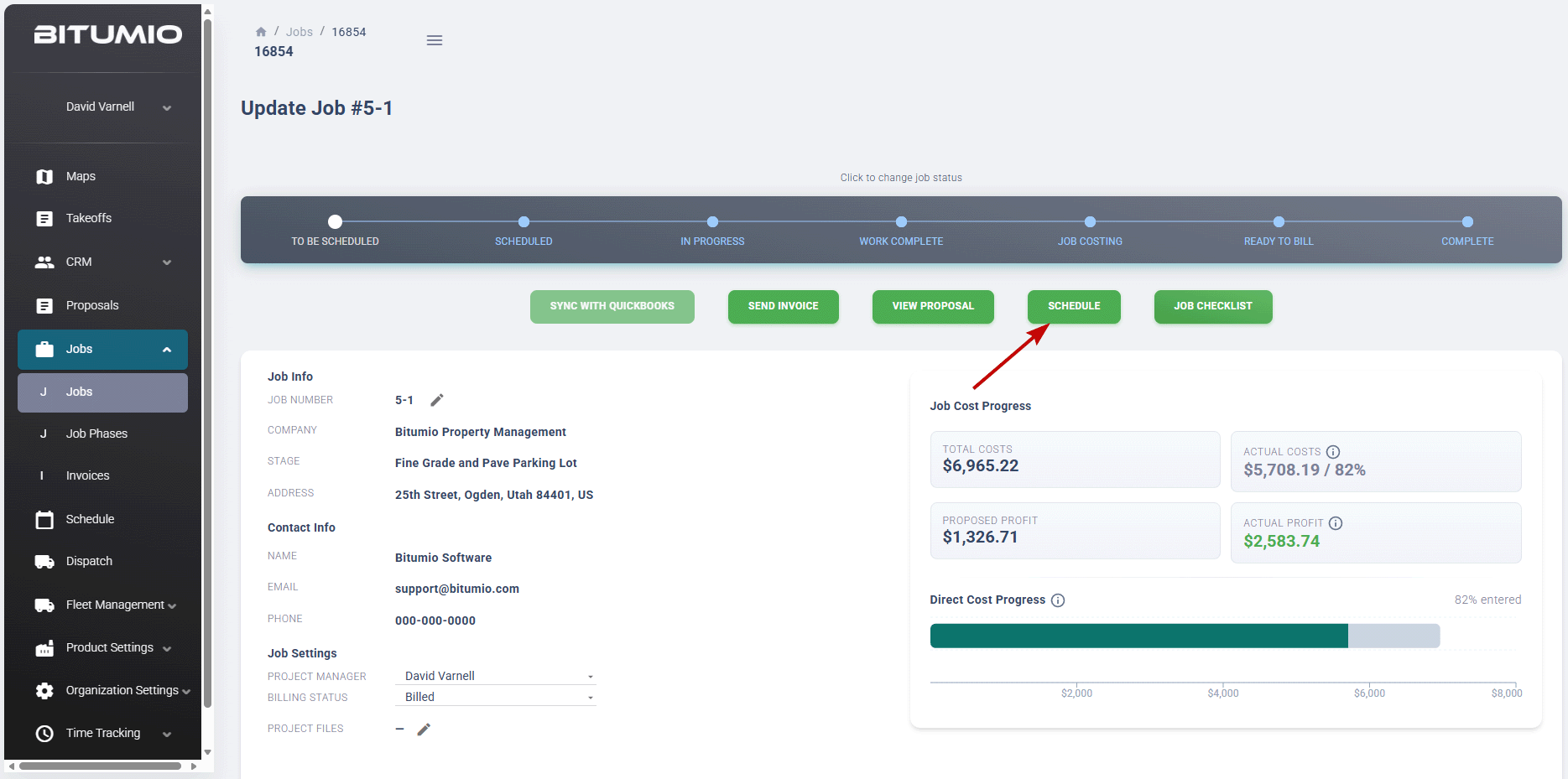
3. To schedule the selected job, click the  button. Doing so takes you to the Jobs Schedule screen.
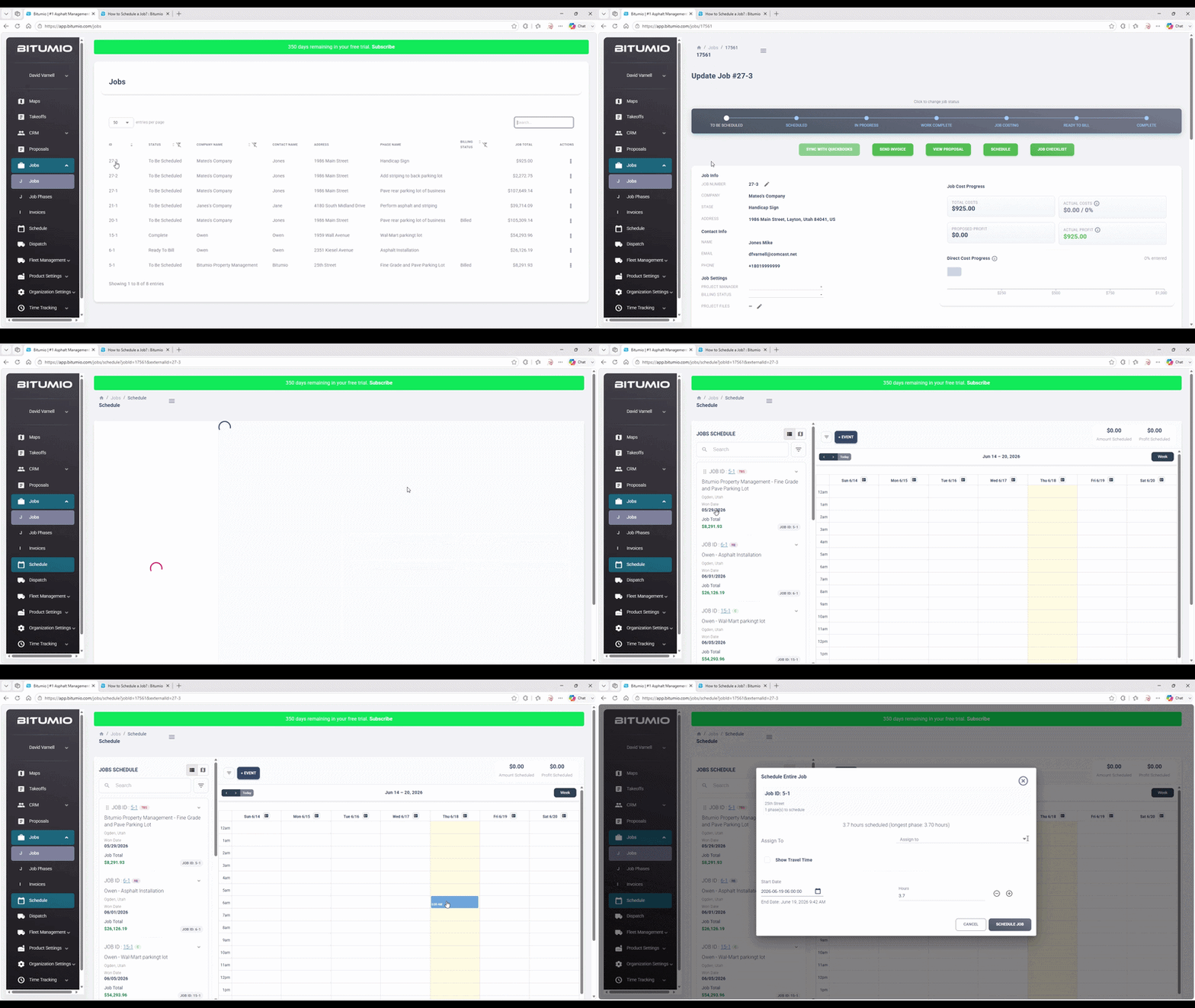
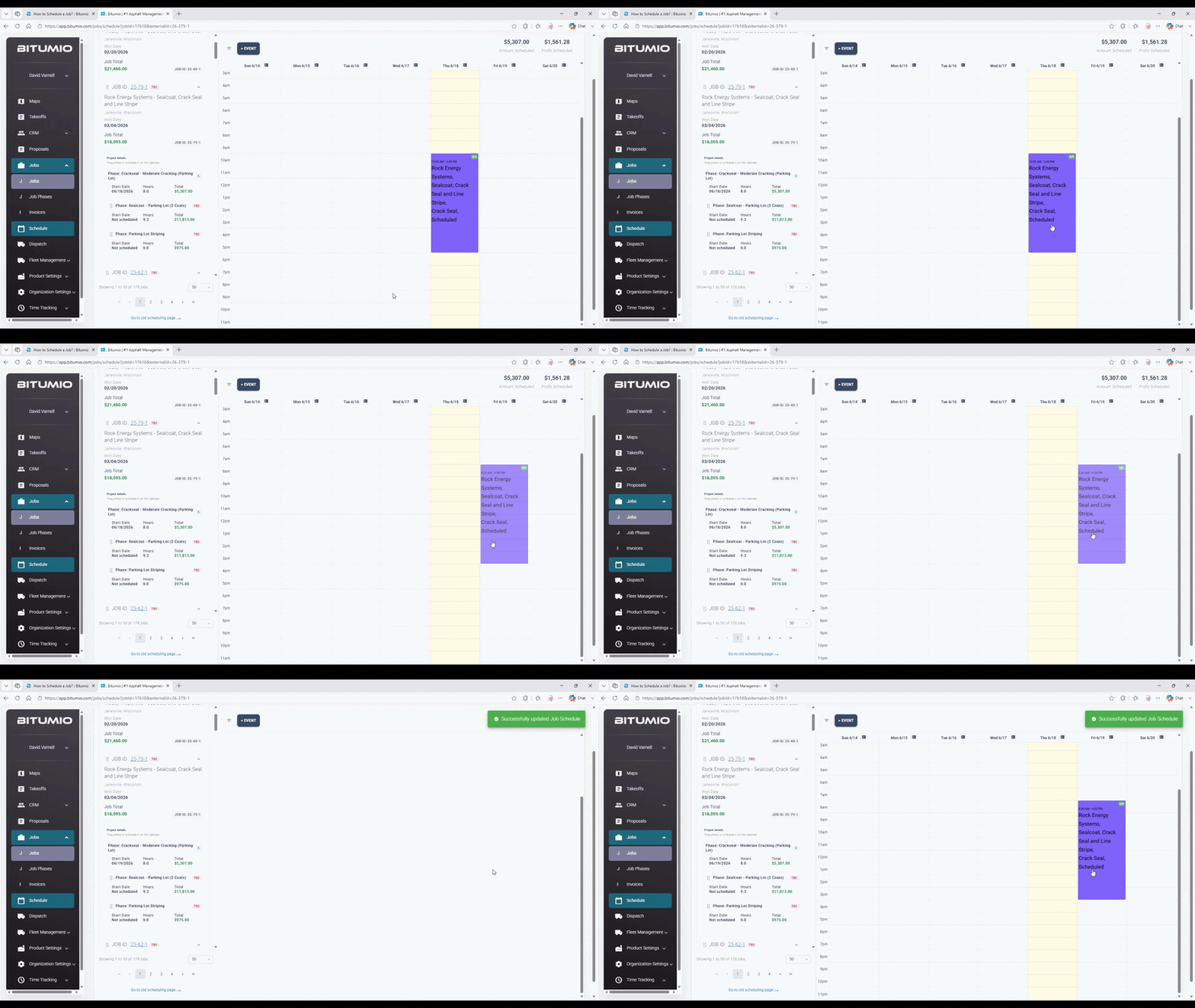
4. Drag and drop the job from the schedule and place it on the calendar for the date and time you want to schedule this job.
6. From the window that opens, use the Assign To dropdown to select whether you want to assign the job to a crew or an individual. A crew is a group of individuals whereas an individual is a specific person you want to assign the job to.
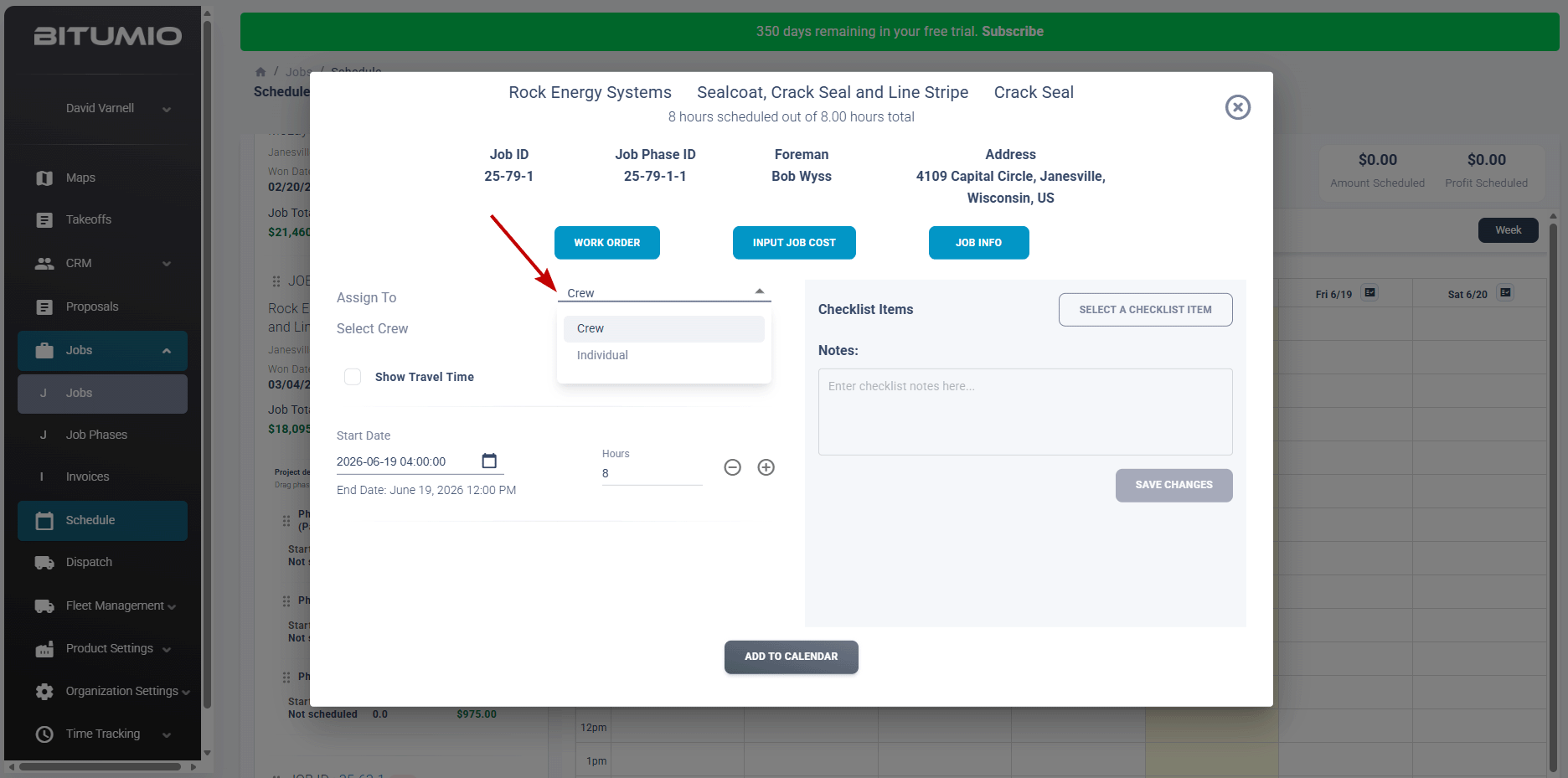
7. In case you select Crew, select the crew from the Crew dropdown.
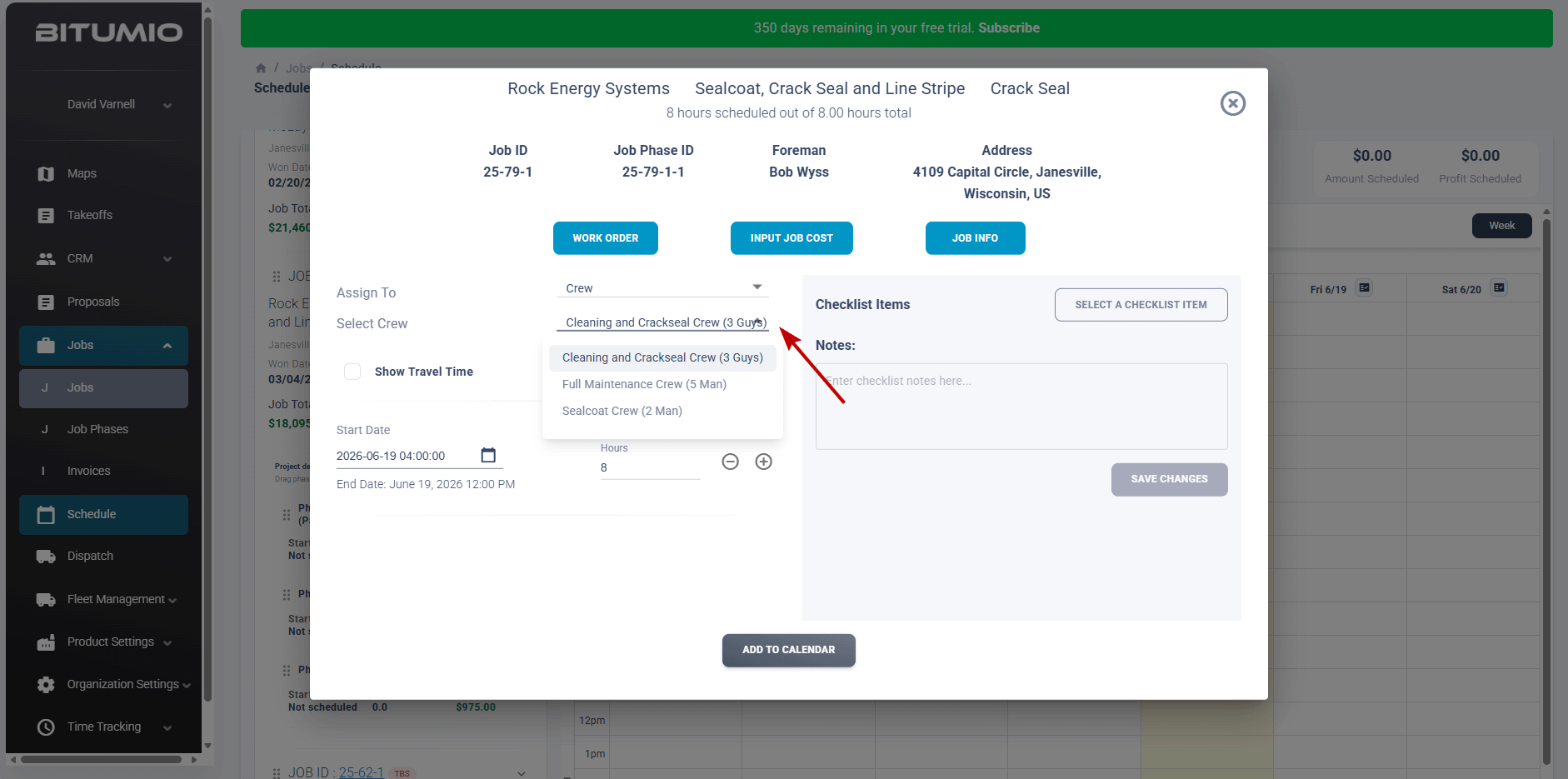
8. In case you select individual, select the individual(s) you want to assign the job to using the Select Individuals dropdown. Multiple selections can be made.
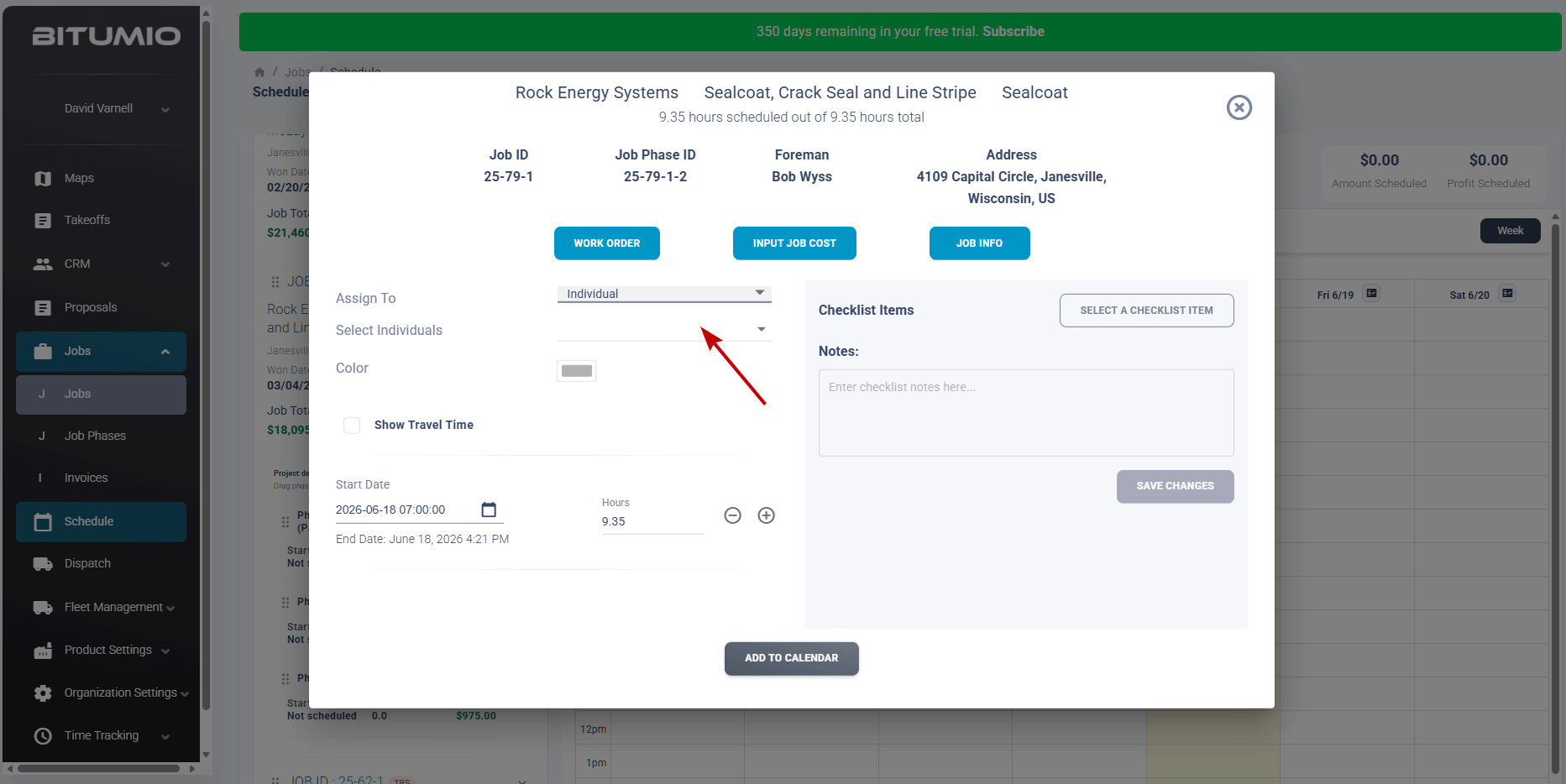
9. In this case, select the color to denote the individuals using the Color palette.
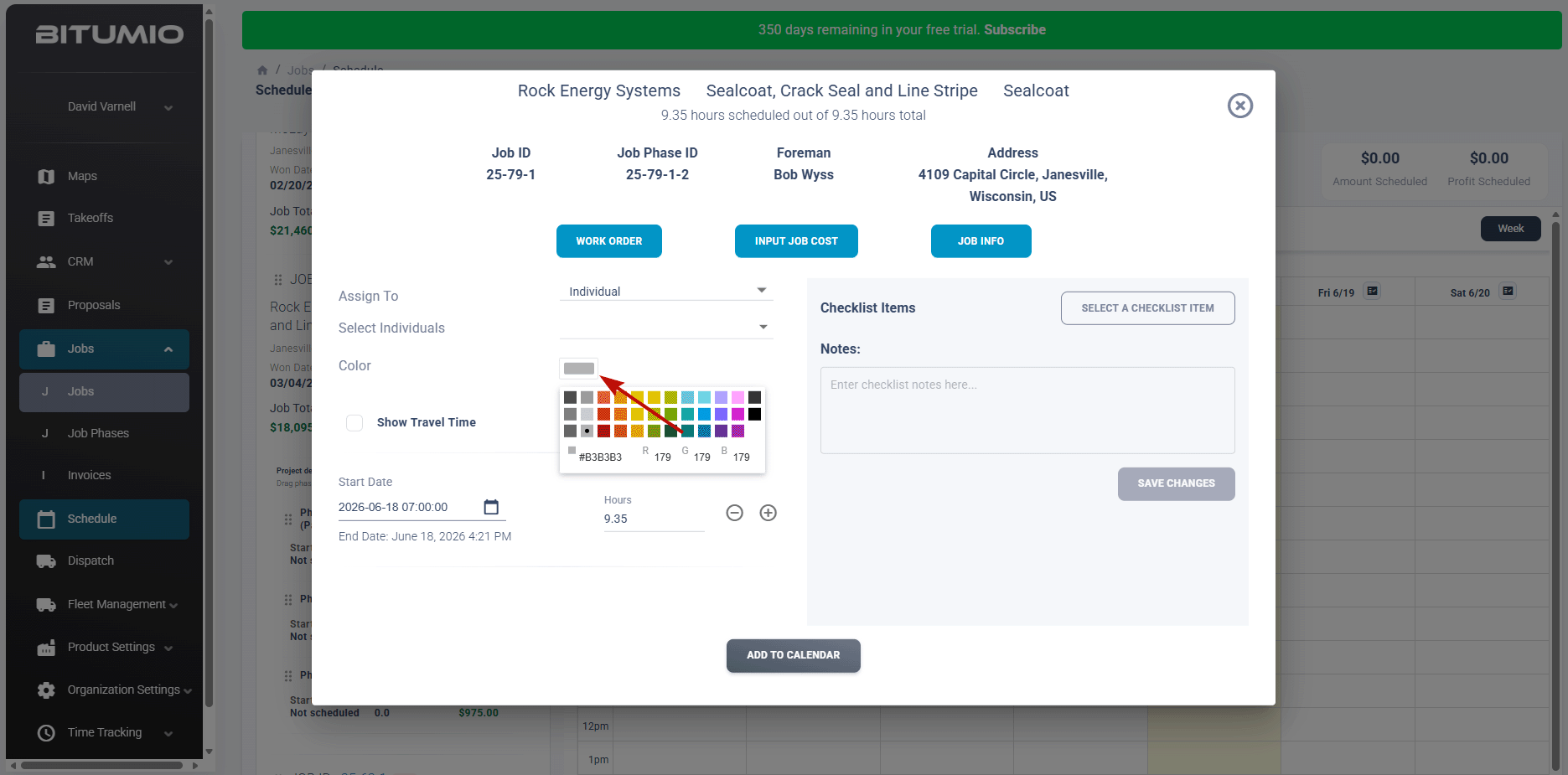
10. Mark the Show Travel Time checkbox if you want to include the travel time estimate for the selected crew.
11. As the checkbox is marked, enter the estimate in the Travel Time estimate/hr. field.
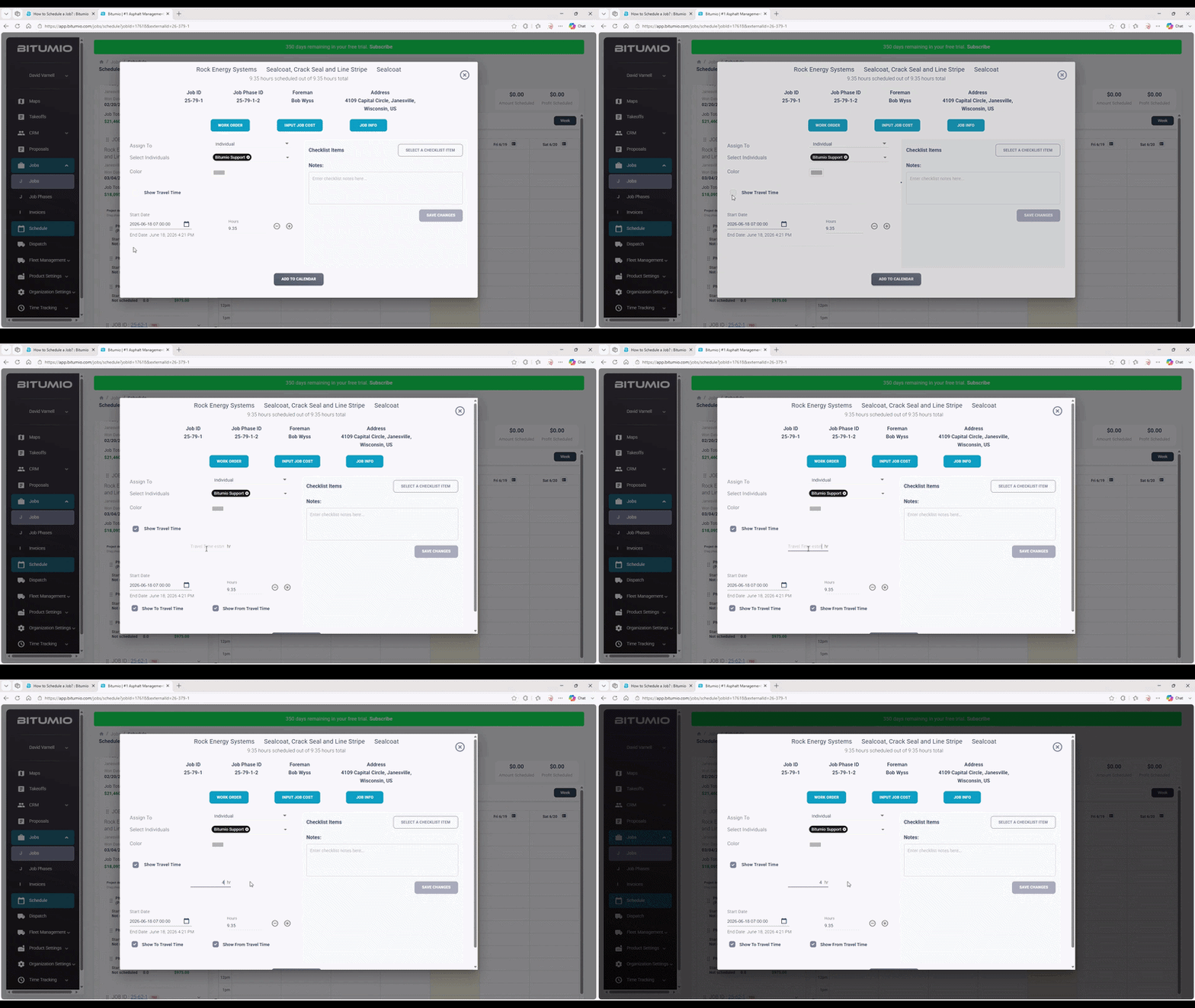
12. You can change the start date or the number of hours scheduled by entering a new start date or updating the hours field. As you enter the number of hours, the End Time is auto calculated and displayed.
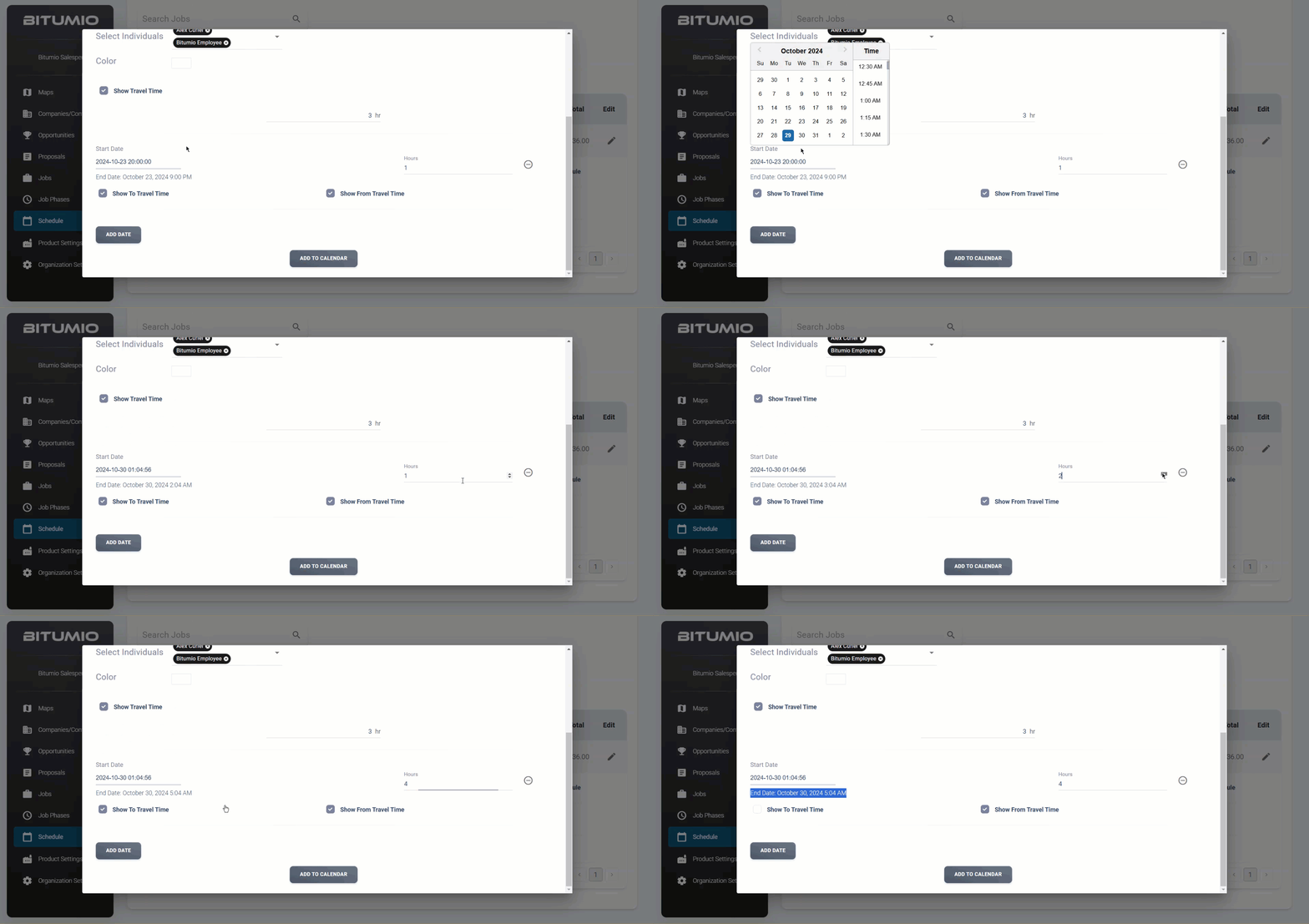
14. In case you do not want to display To travel time, unmark the Show To Travel Time checkbox.
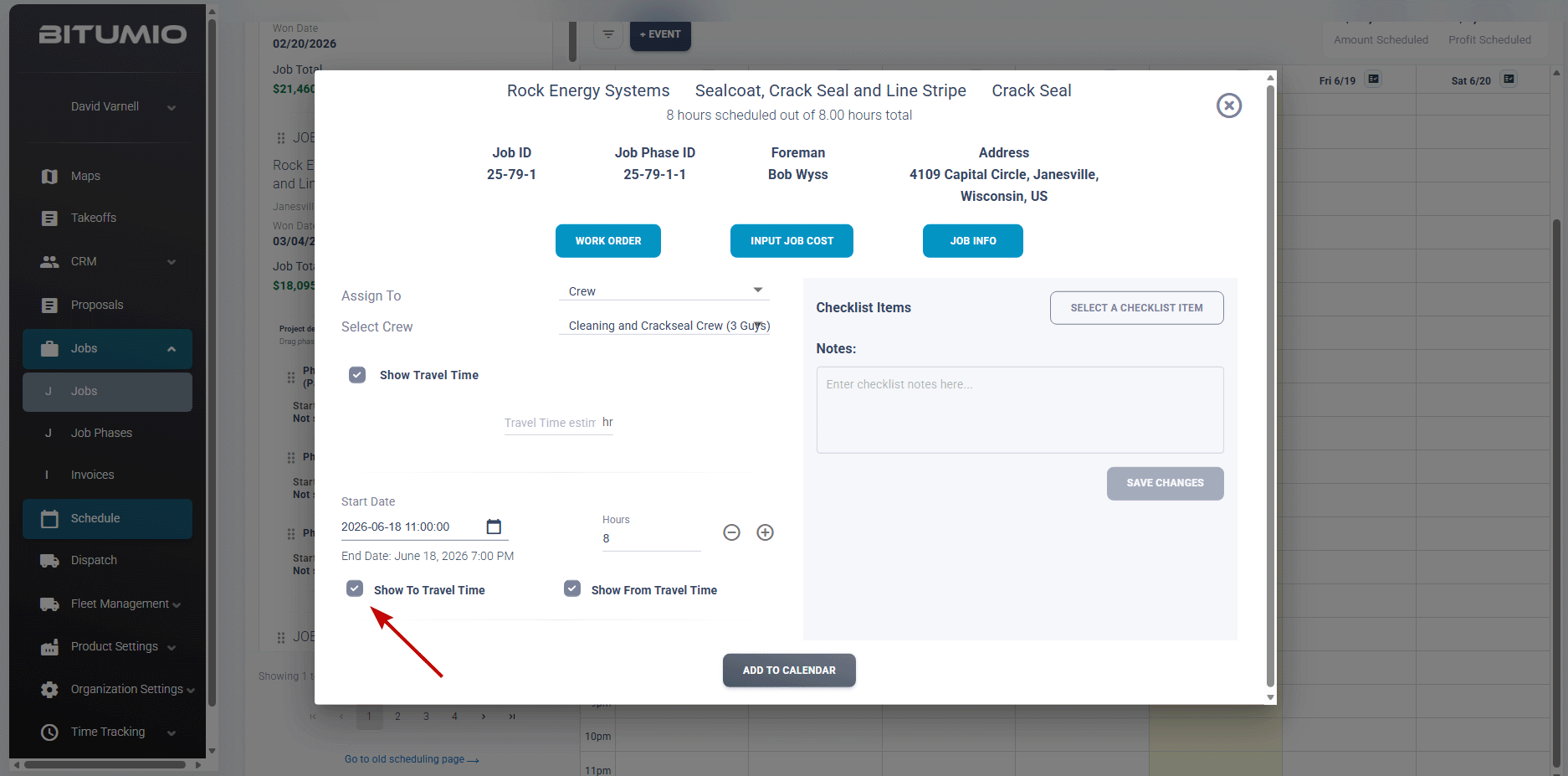
15. Similarly, unmark the Show From Travel Time checkbox if you do not want to display From travel time.
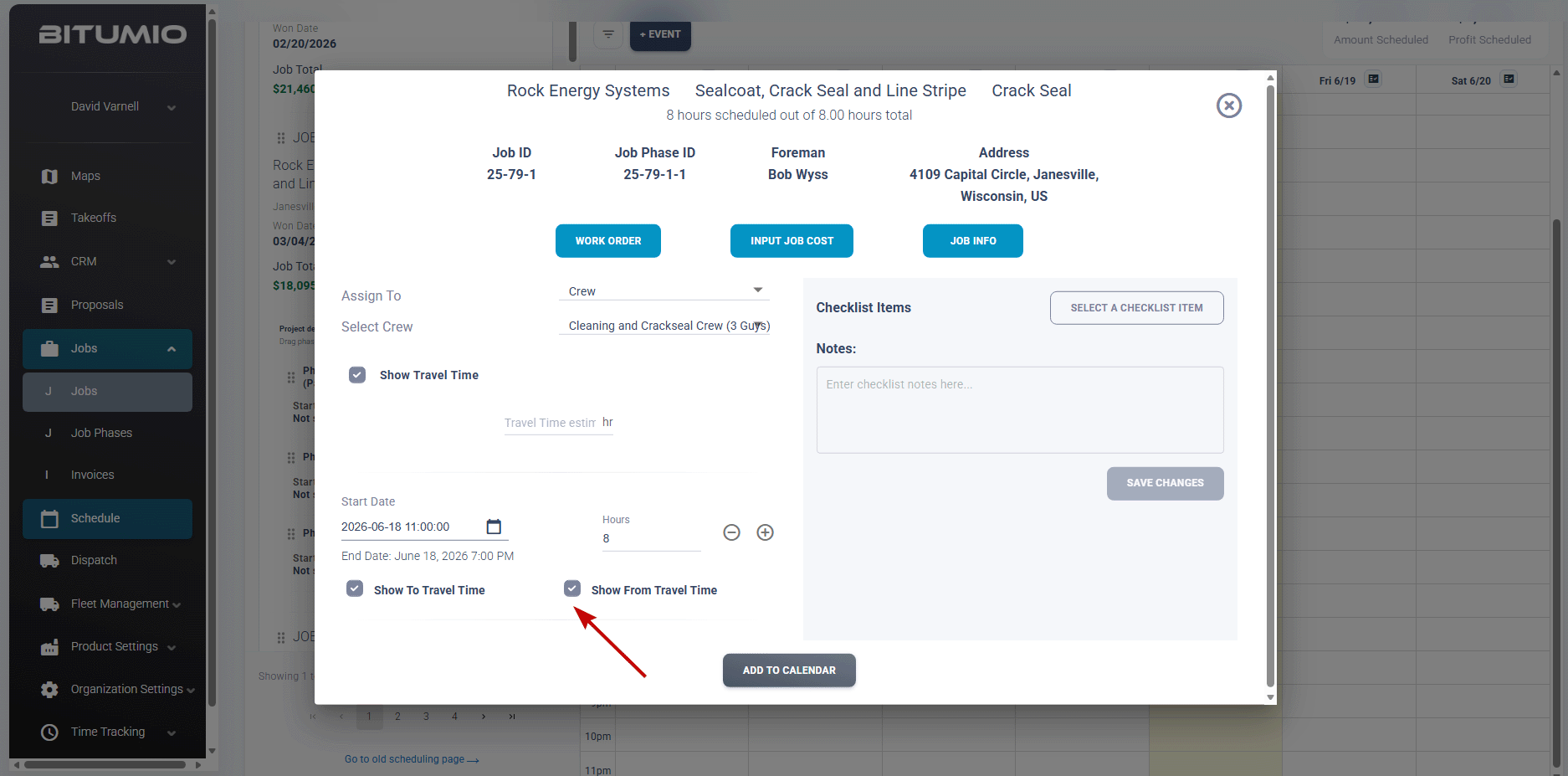
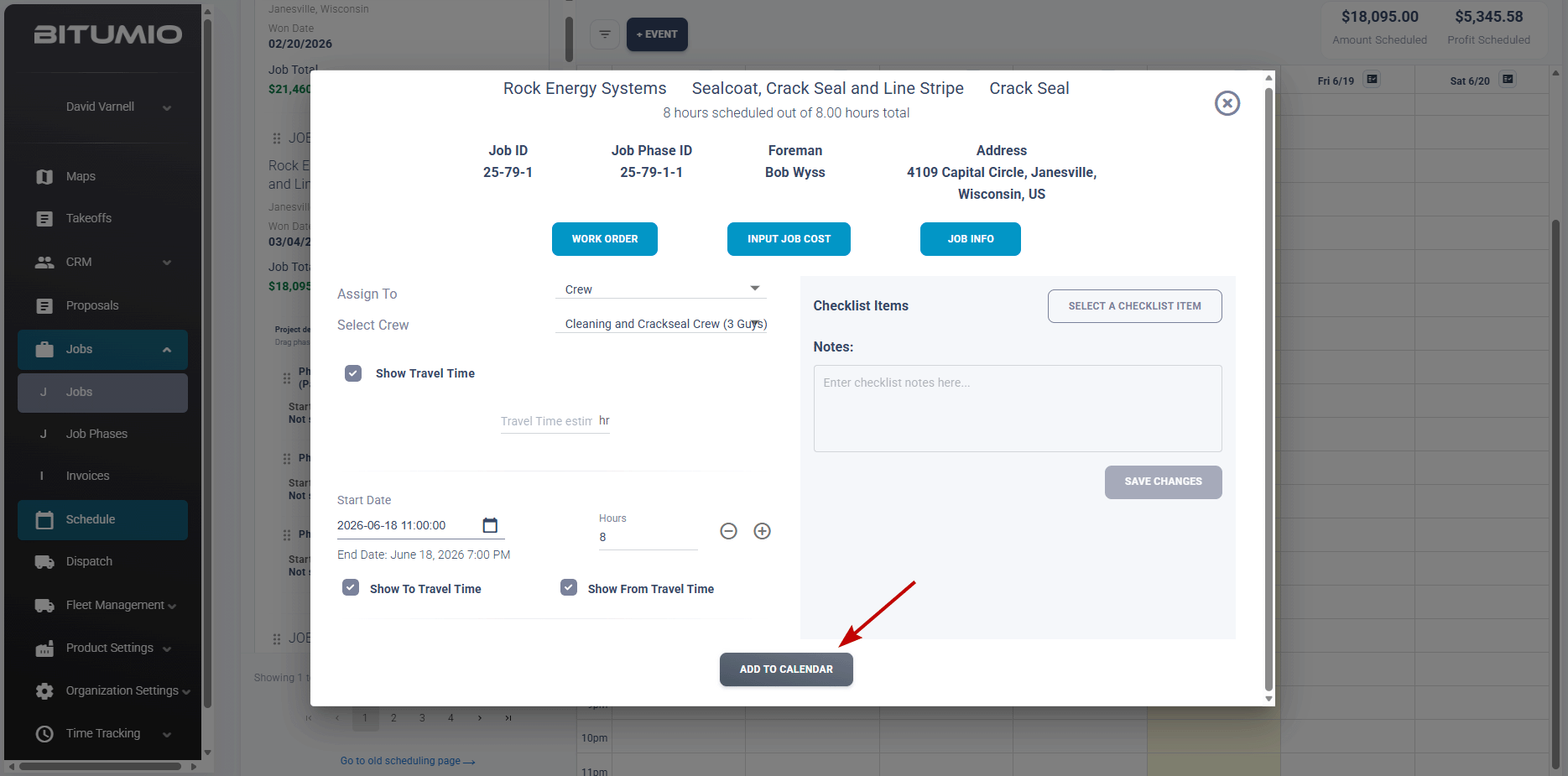
17. Once the required selections are made, click the  button. This adds the job to the calendar.
18. As the job appears on the calendar, you can drag and drop the job on the calendar to adjust the calendar slot.
Was this article helpful?
That’s Great!
Thank you for your feedback
Sorry! We couldn't be helpful
Thank you for your feedback
Feedback sent
We appreciate your effort and will try to fix the article