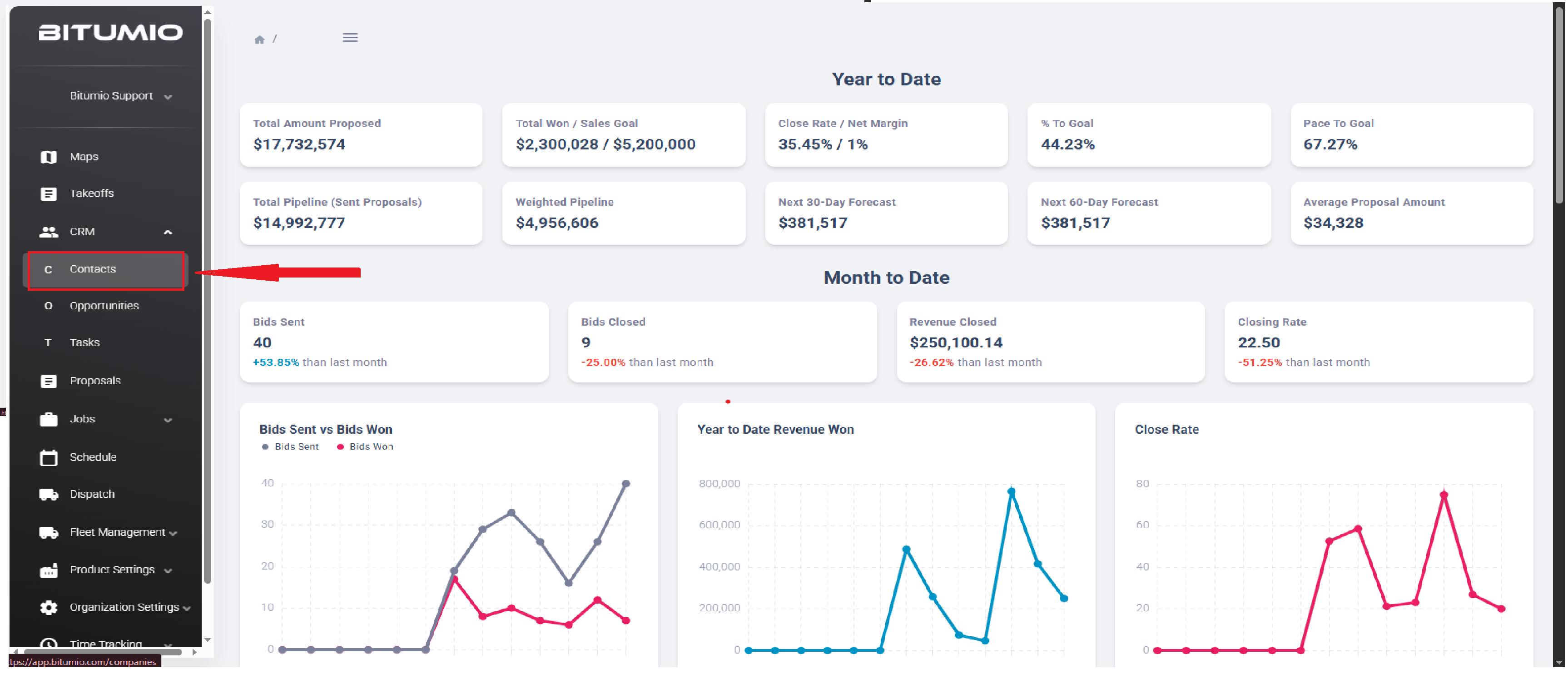
Bitumio > Left Navigation Bar > CRM > Contacts1. Upon successful login, click the Contacts button from the left navigation bar. Doing so takes you to the Contacts screen.
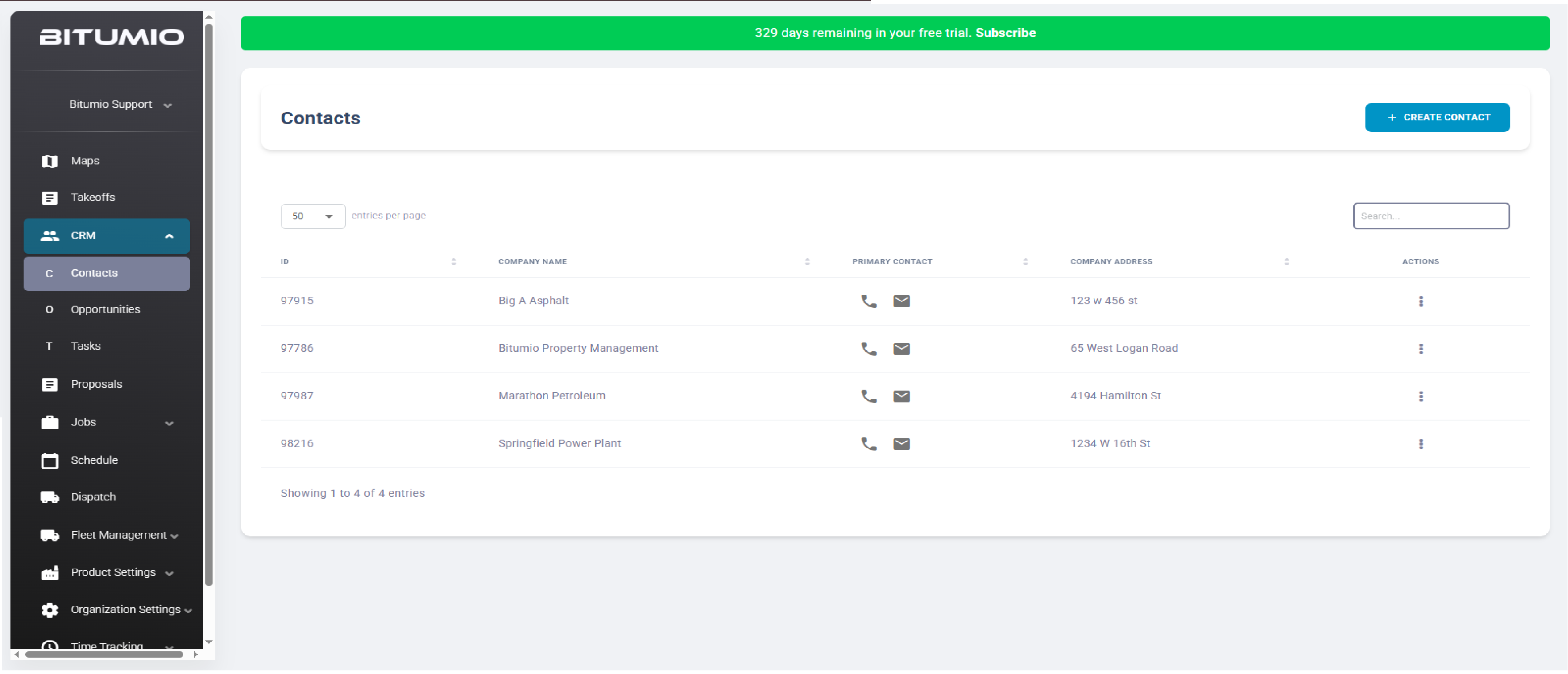
2. Here, all the added companies are displayed in a grid. Information is tabulated via several columns that include ID, Company Name, Primary Contact, Company Address, and Actions.
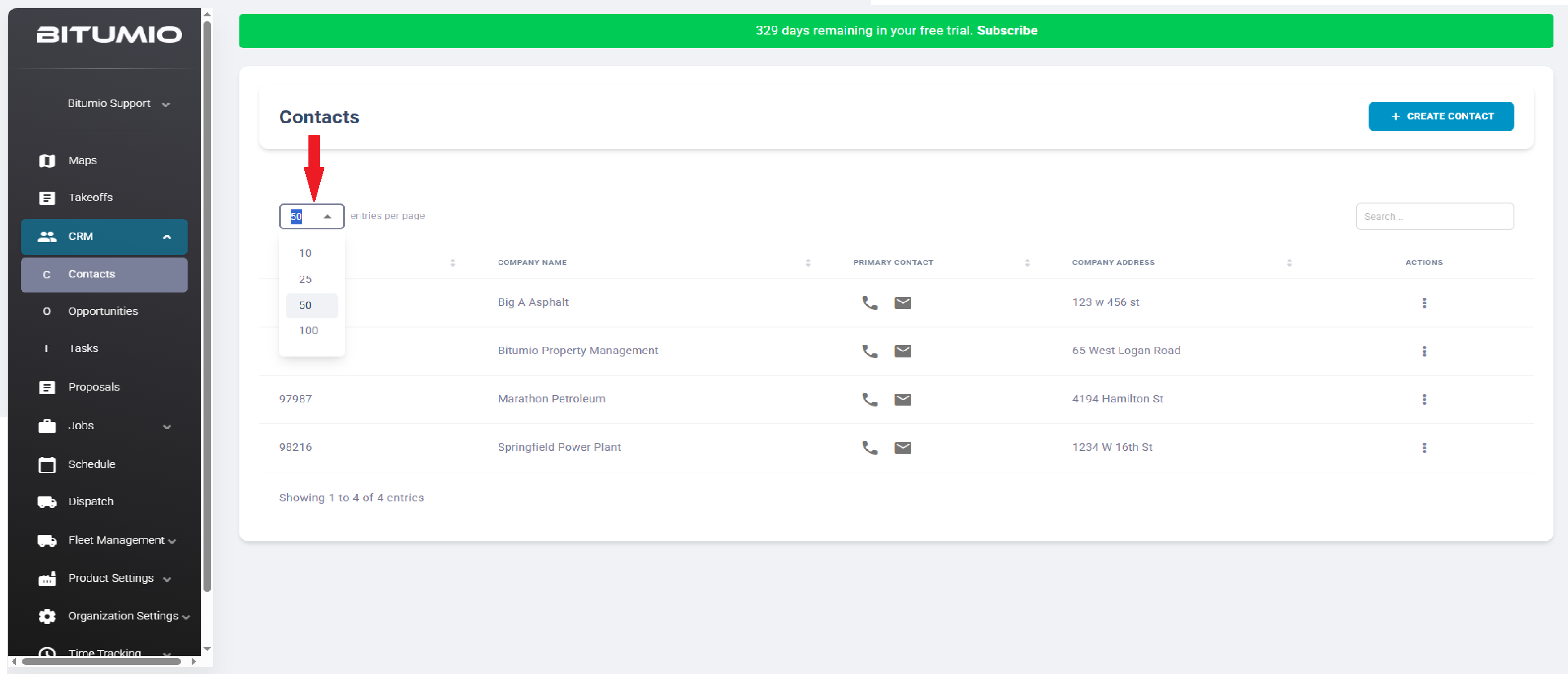
3. By default, 10 records are displayed. However, you can click the dropdown at the top-left corner to set the number of records to 25, 50, or 100.
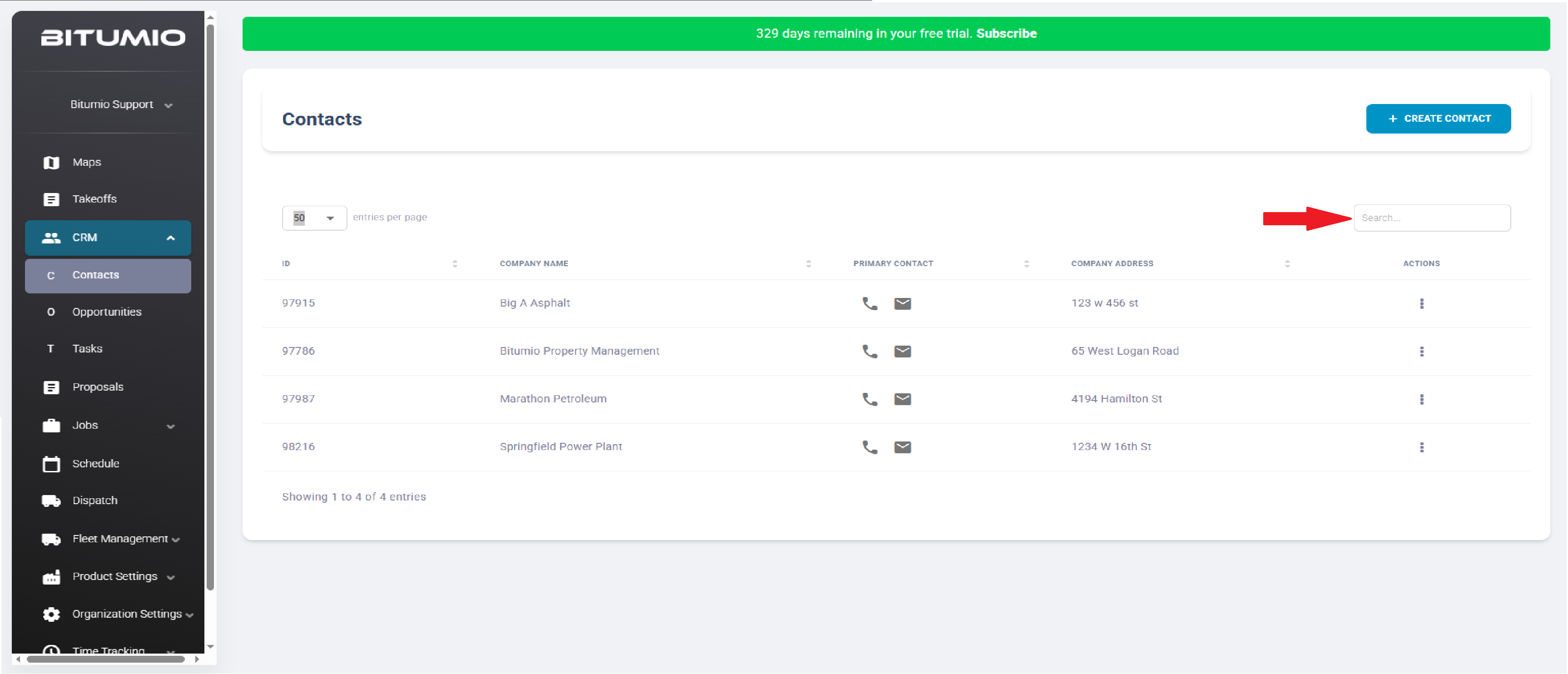
4. A search bar at the top-right corner allows you to search for a specific record.
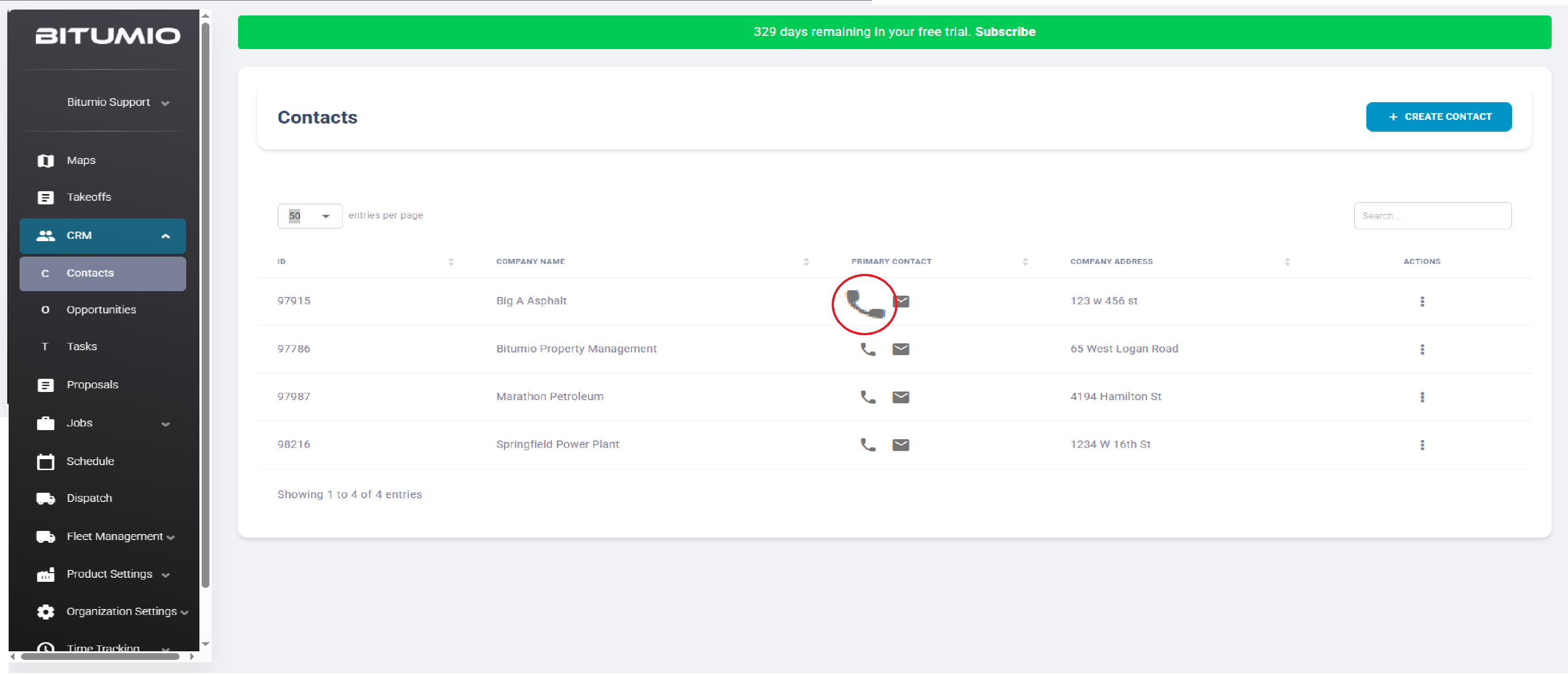
5. Under the Primary Contact column, click the  icon to contact the company via phone.
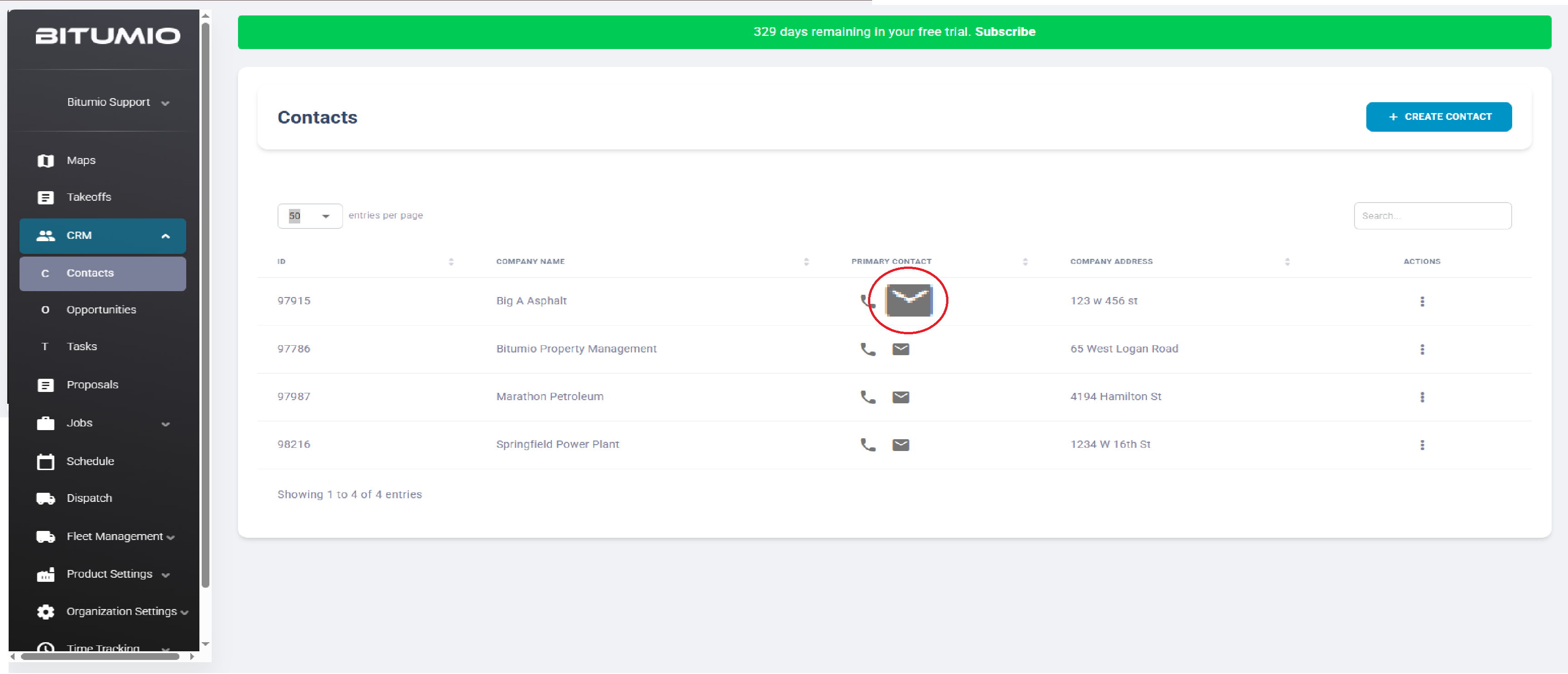
6. To contact a company on their email address, click the  icon.
icon.
Was this article helpful?
That’s Great!
Thank you for your feedback
Sorry! We couldn't be helpful
Thank you for your feedback
Feedback sent
We appreciate your effort and will try to fix the article