Overview
Bitumio’s Time Tracking feature allows teams to log, monitor, and analyze labor hours across jobs in real time. This ensures accurate job costing, improved crew accountability, and better visibility into project performance.
Time tracking in Bitumio is primarily managed through two key components:
Time Entries – Individual records of work performed
Time Buckets – Categories used to organize and classify time
By capturing real-time labor data, Bitumio helps teams track productivity and maintain accurate project costs.
1. Time Entries
What is a Time Entry?
A Time Entry is a record of work completed by a user on a specific job. Each entry captures:
Date of work
User (employee)
Job ID / Job Name
Clock In Time
Clock Out Time
Total Hours worked

These entries provide a detailed breakdown of who worked, on what job, and for how long.
How to Access Time Entries
Navigate to Time Tracking from the left sidebar
Click Time Entries
You will see a list of entries grouped by date
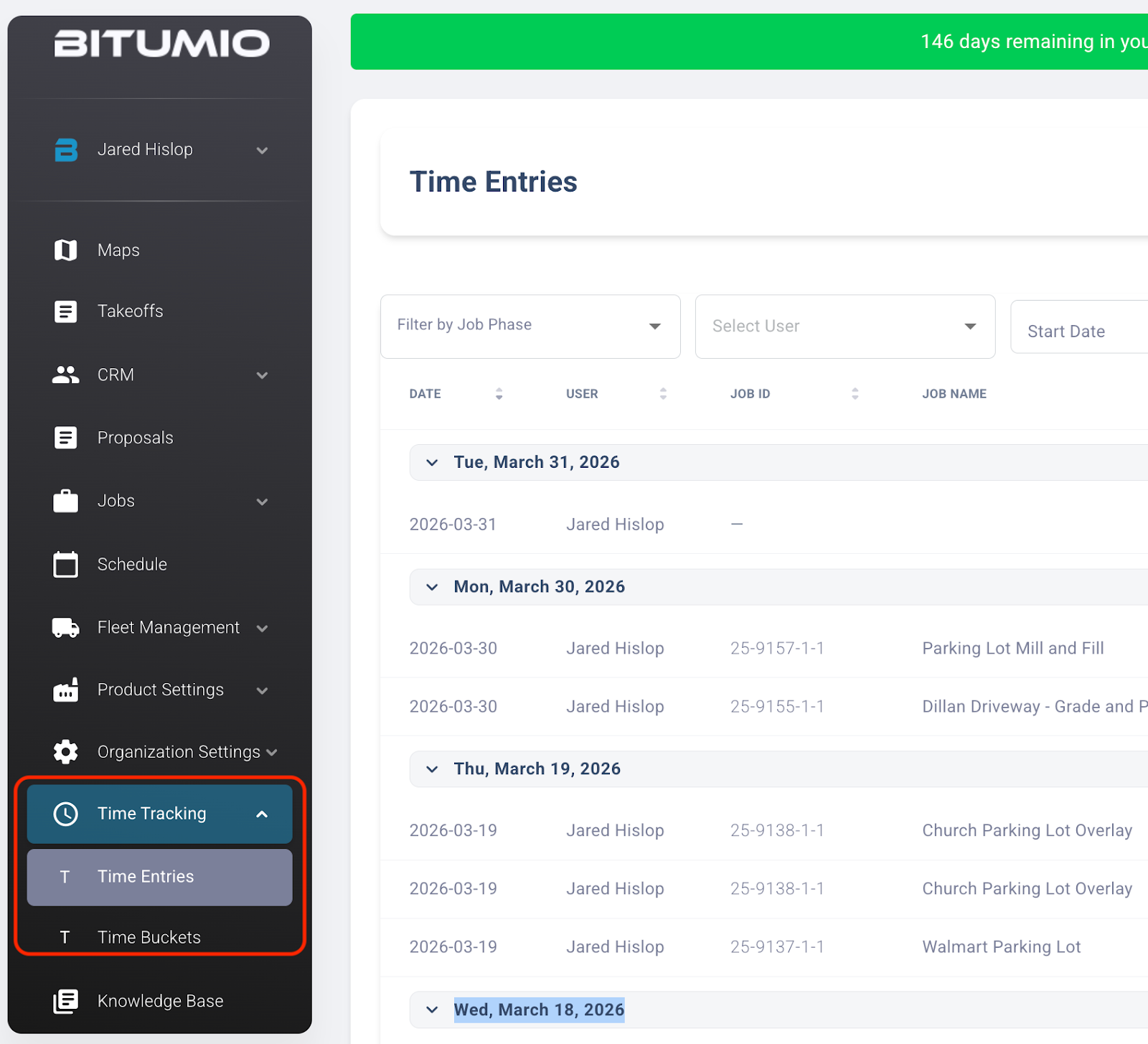
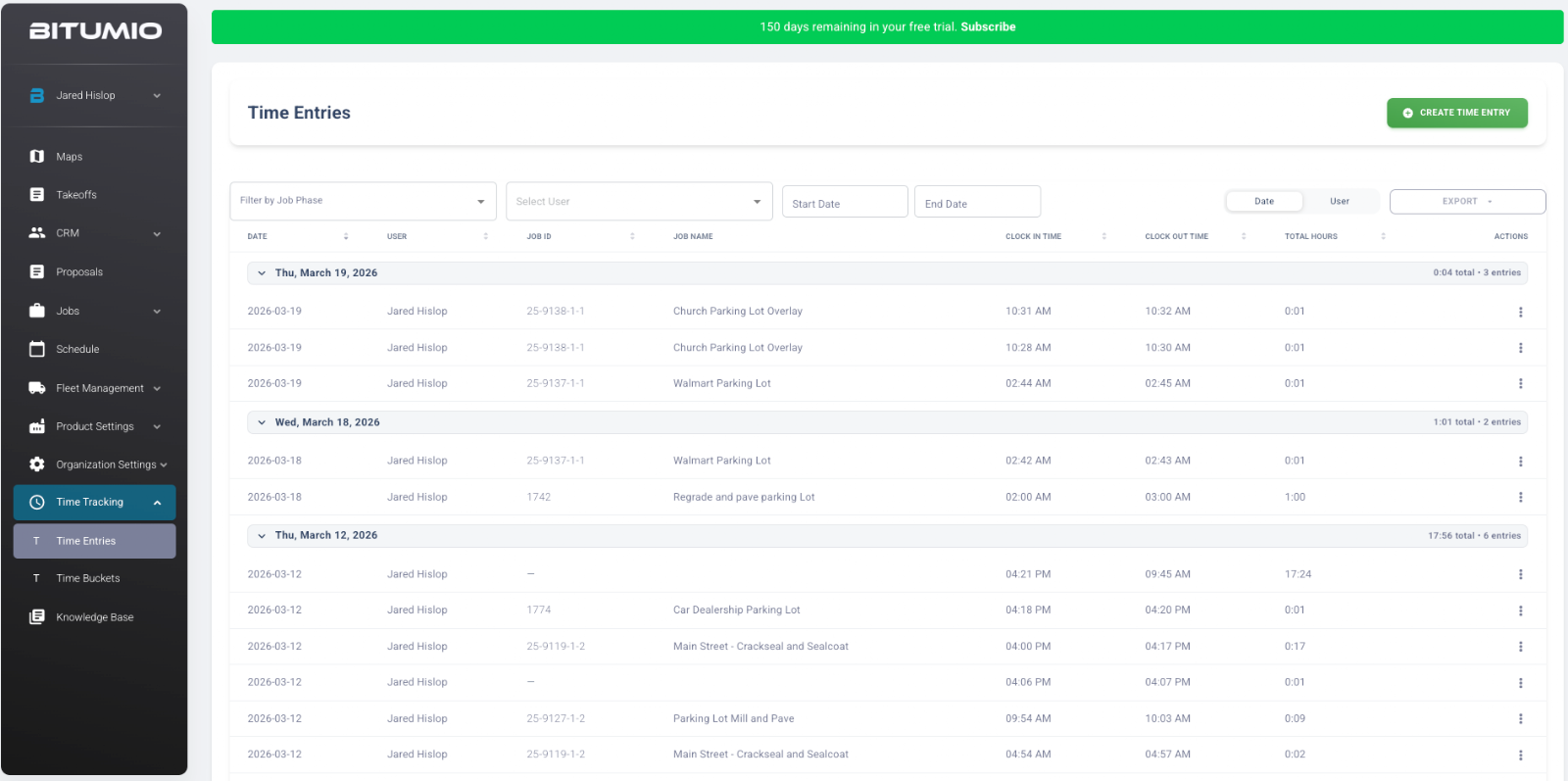
The Time Entries page includes:
Filters
Job Phase
User
Start Date / End Date
Columns
Date
User
Job ID
Job Name
Clock In / Clock Out
Total Hours
Grouping
Entries are grouped by date
Daily totals are displayed
Actions
Edit or manage entries via the options menu
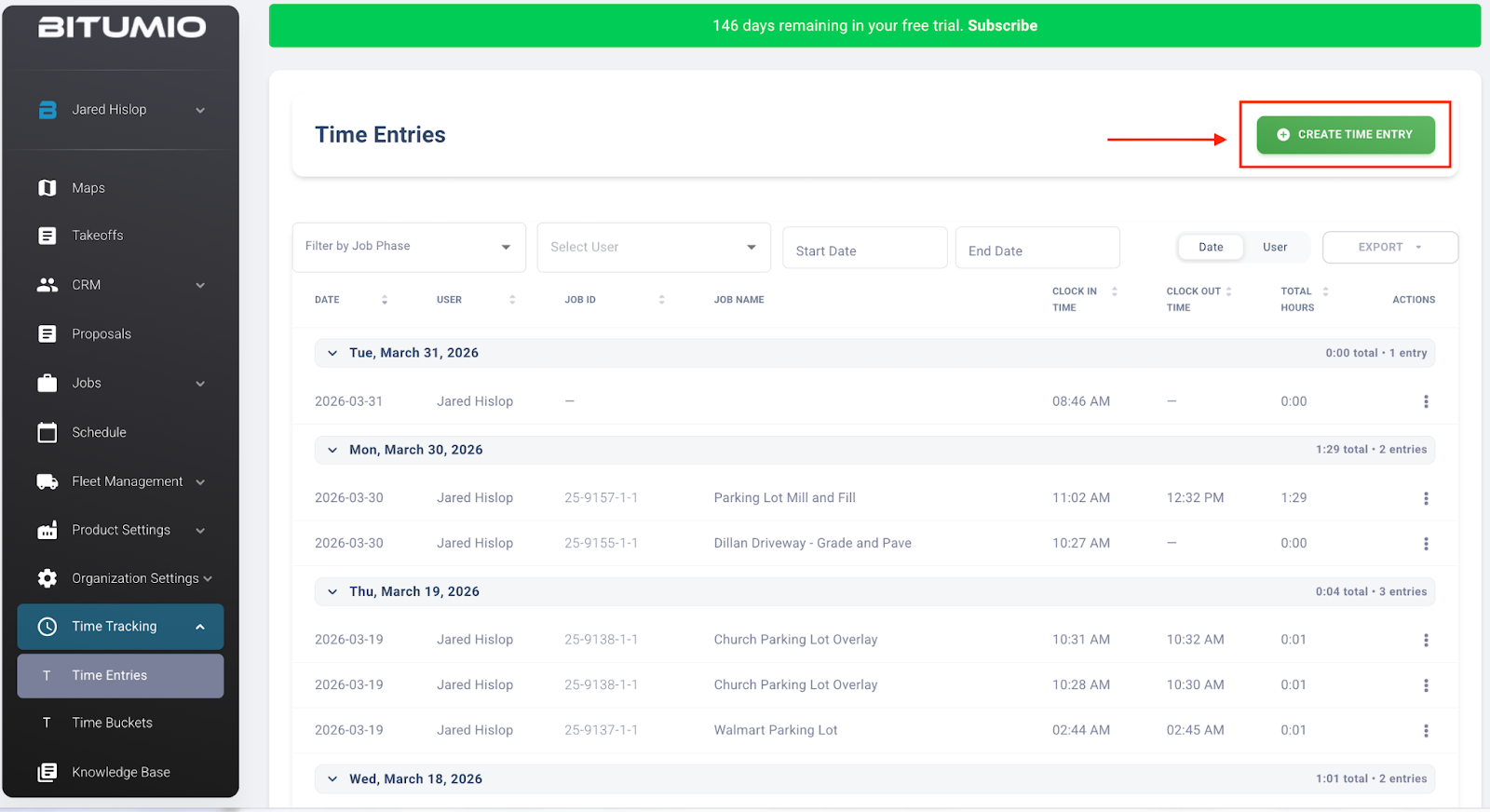
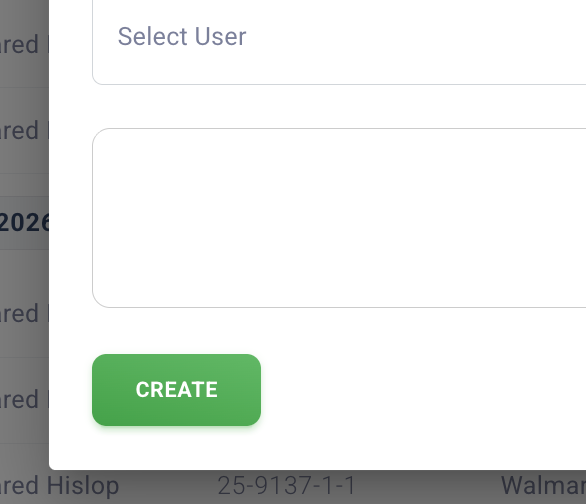
How to Create a Time Entry
Click Create Time Entry (top right)
Enter the required details:
User
Job
Date / Clock In & Clock out
Select Use
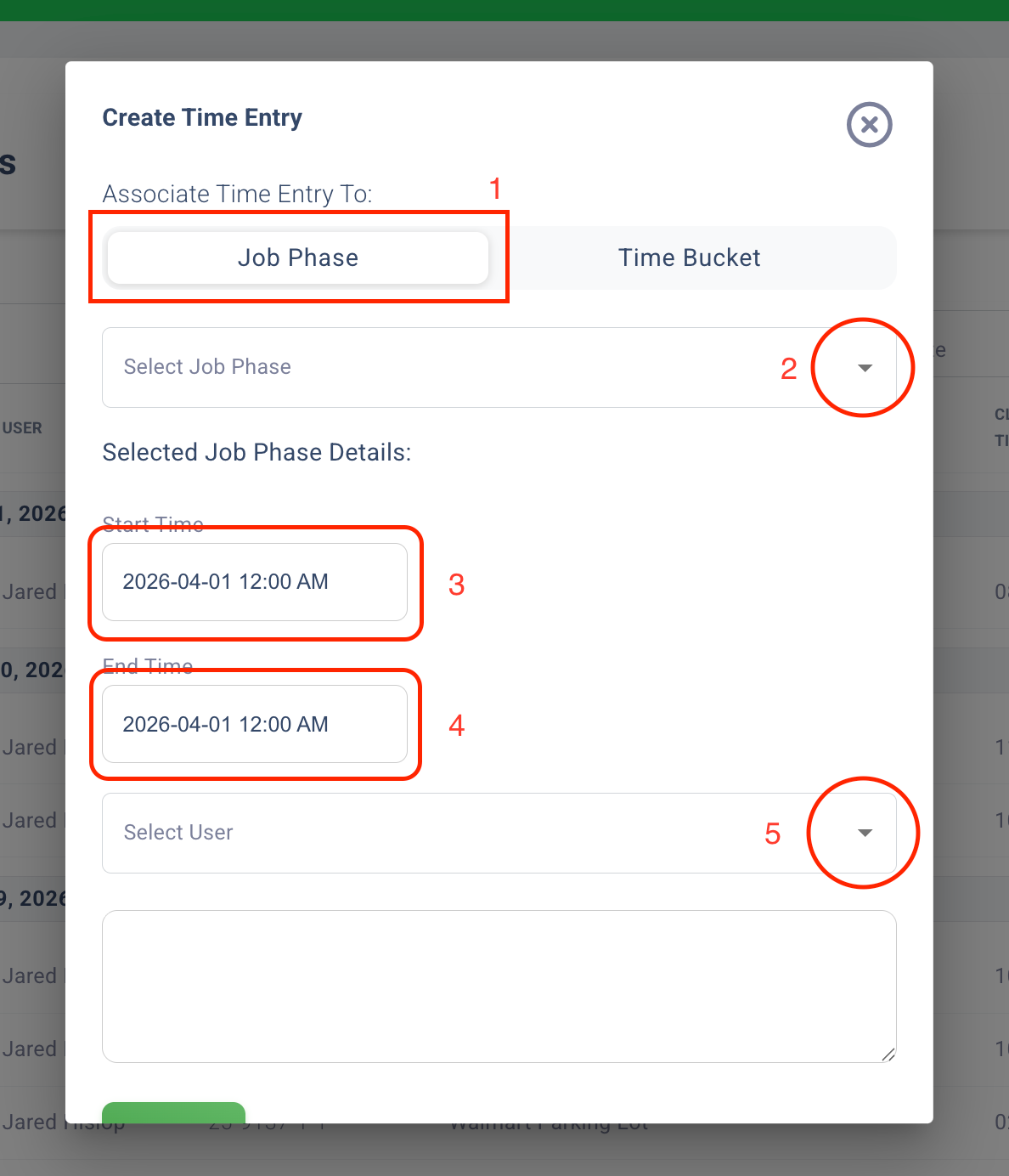
Save the entry
? Tip: Ensure accurate clock-in/out times to maintain correct job costing and payroll data.
Best Practices for Time Entries
Log time daily to avoid missing data
Assign entries to the correct job and job ID
Avoid overlapping or duplicate entries
Regularly review entries for accuracy
Was this article helpful?
That’s Great!
Thank you for your feedback
Sorry! We couldn't be helpful
Thank you for your feedback
Feedback sent
We appreciate your effort and will try to fix the article