Bitumio > Left Navigation Bar > CRM > Contacts1. Follow the above-mentioned workflow to land on the Contacts screen.
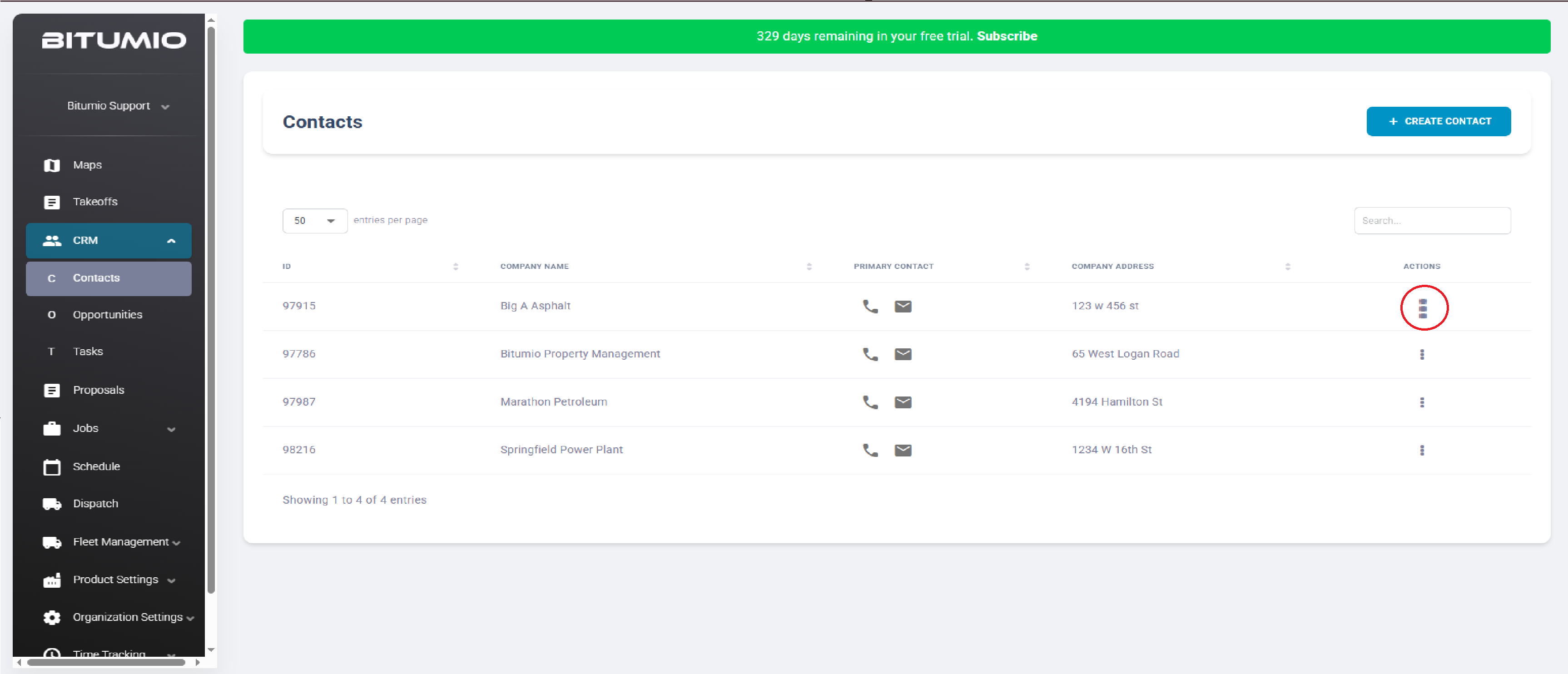
2. Click the  icon under the Actions column for a contact you want to update the details of. Doing so reveals a number of options.
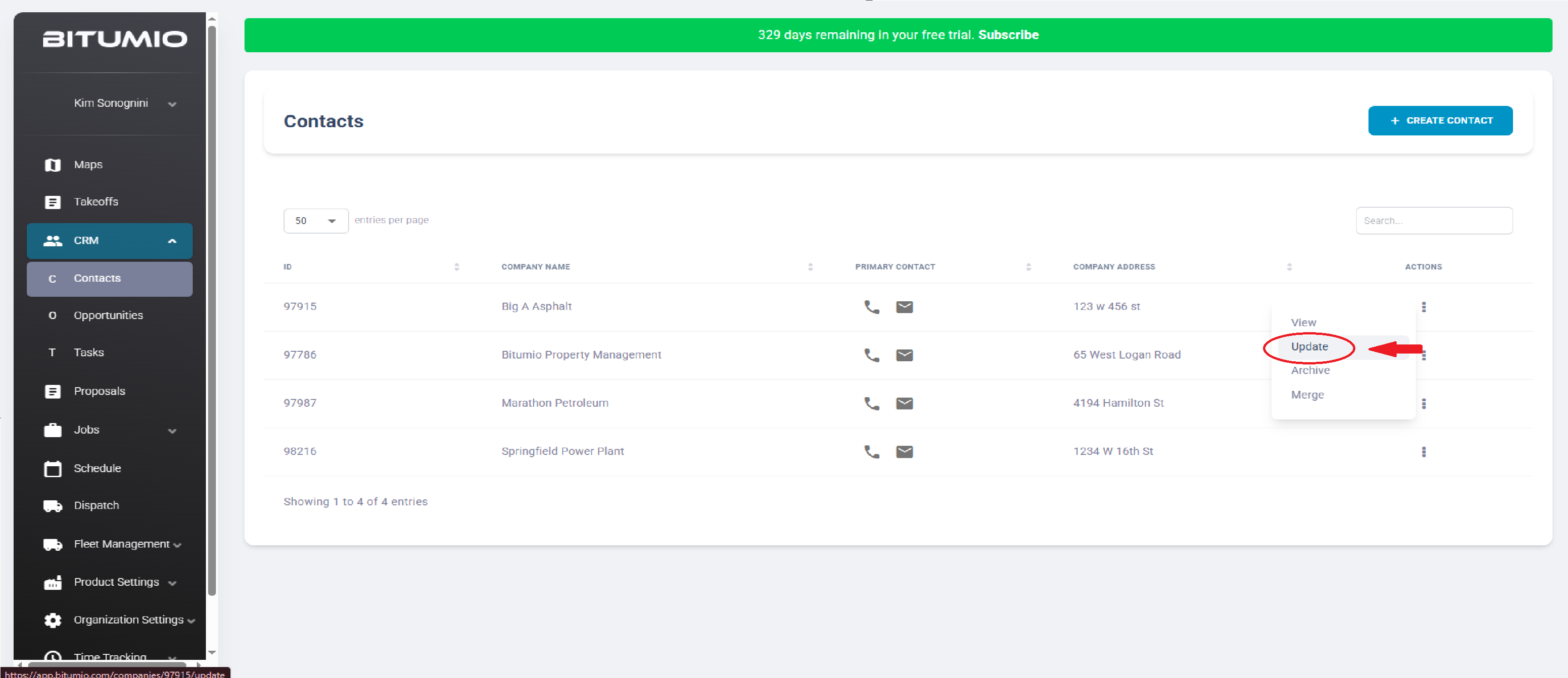
3. From the options displayed, click Update.
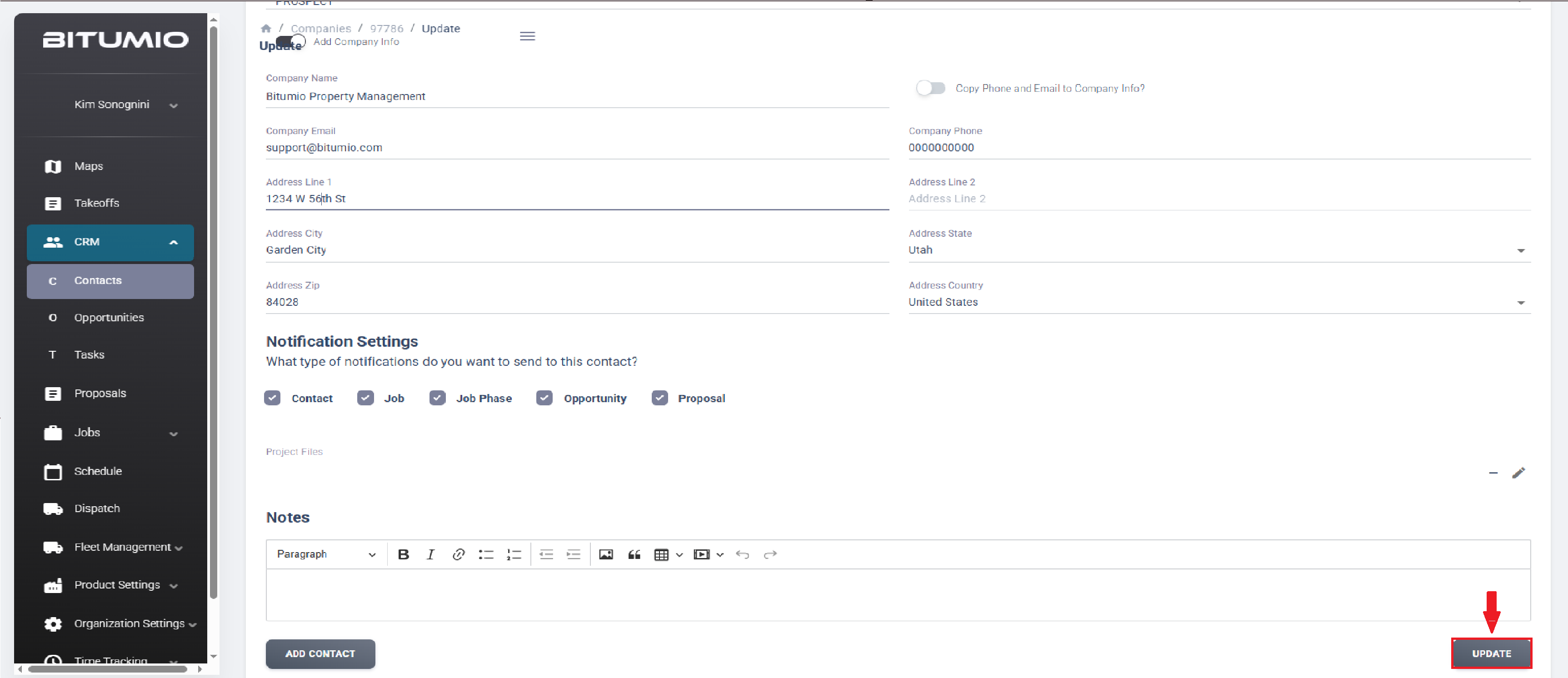
4. Doing so opens the Update Contact screen. Here, all the details for the selected contact are displayed in an editable view.
5. Once you have made the required changes, click the  button.
Was this article helpful?
That’s Great!
Thank you for your feedback
Sorry! We couldn't be helpful
Thank you for your feedback
Feedback sent
We appreciate your effort and will try to fix the article